
Purchase links may earn us a commission at no extra cost to you. Our assessment is based on documented capabilities and purchase checks, not promised customer outcomes. Our editorial approach.
Quick answer: Start with one correctly identified business and one relevant service query. Confirm the location, grid, radius and displayed scan cost; then interpret the completed map and turn the observations into a manually reviewed report. The useful output is an explainable baseline and a deliverable proposal—not a promise of automatic rankings.
This ProfitMaps AI tutorial translates the vendor's recorded interface into a practical setup sequence. The current release is advertised for October 21, 2026 at 11 AM EDT, and Basic is advertised at $37. Final billing, included credits, refund conditions and coupon acceptance remain purchase checks. For the broader product evaluation, read our in-depth architectural review on Launch Review Lab.
Product specifications were checked against the official launch documentation on October 13, 2026. The screenshots below come from the vendor's recorded demonstration and do not represent an audit performed for our own customer.
Before You Begin: What the Demo Establishes
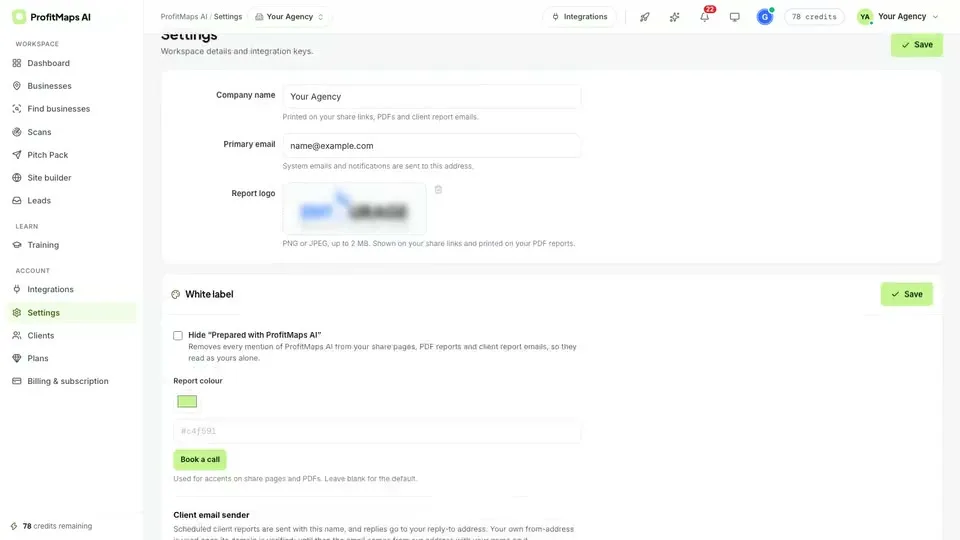
The vendor lists a default 5 × 5 grid, business workspaces, keyword selection and a cost preview before running a scan. Recorded settings also show company branding and report controls, with removal of software attribution identified as a Pro feature. Those observations help you prepare a trial; they do not prove that every feature appears in every licence.
Treat “60-second setup” as a speed claim requiring a real timing test, not a guaranteed end-to-end audit. The public walkthrough explicitly says that scan waiting time is cut out. Preparing a scan, receiving results, reviewing them and producing a useful proposal are separate tasks.
Have the business's correct public name, location, service area and one commercially relevant query ready. Decide who will receive the report and what service you can genuinely deliver. This prevents an attractive map from becoming an unsupported sales promise.
Step 1: Set Up the Workspace and Confirm the Location
Separate the Business from the Agency Workspace
Use the business workspace shown in the vendor demonstration to keep the relevant business, keywords and scan history together. Before entering a second location, establish whether it needs a separate customer slot. Basic currently lists 10 customers and two keywords per customer; that is not evidence of unlimited branches or monthly scans.
Do not request a prospect's software password or Business Profile login merely to prepare a public visibility discussion. For work that actually changes a client's profile or website, obtain the appropriate authorisation separately. Keep client access and audit research distinct.
Verify the Map Centre
Check the business identity and address before accepting the map location. A same-name business in another city, an old address or the wrong branch can make an otherwise completed scan irrelevant.
The demonstrated scan dialog links the selected business to a search radius. It does not establish a universal manual latitude/longitude entry feature. If your version exposes coordinate controls, inspect them; otherwise verify the selected listing and map pin rather than inventing an extra setup step.
Choose a geographic question first. For a neighbourhood salon, nearby searches may matter most. A roofer serving several towns may need a different sampling area. A larger radius is not automatically a better audit: it changes the question being measured.
Step 2: Choose the Keyword, Grid and Scan Budget
Pick a Query the Business Actually Serves
Use one service-led phrase, not whichever query produces the reddest map. A practice offering general dentistry and one specialising in cosmetic procedures do not necessarily compete for identical searches. Confirm the service with the business's public information before building a pitch around it.
Keep the exact query in your audit notes. Changing from a broad category to a specific service between scans prevents a clean before-and-after comparison.
Start with the Documented 5 × 5 Grid
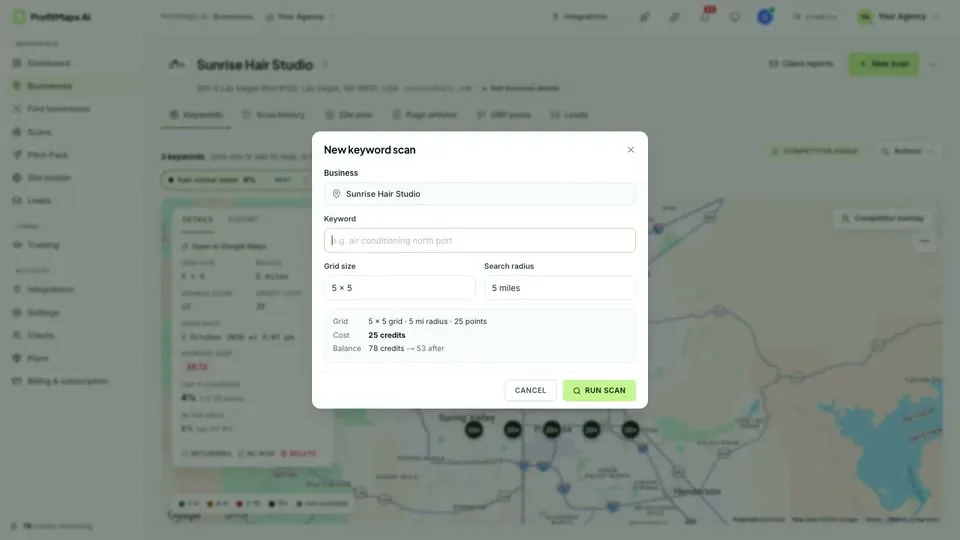
A 5 × 5 grid contains 25 sampled positions. A 7 × 7 grid contains 49 positions, but the larger grid's availability and cost must be confirmed in your actual licence. A 49-point illustration on a marketing page does not prove a 7 × 7 entitlement in Basic.
The screenshot below shows the real recorded configuration: a 5 × 5 grid, a five-mile radius and an estimated cost of 25 credits. Its 78-credit balance is a sample account figure, not an included allowance for new buyers.
Record the Settings Before Running
Use a simple audit log so a later scan answers the same question:
| Record | What to save | Why it matters |
|---|---|---|
| Business | Exact listing and location | Prevents wrong-branch comparisons |
| Query | Exact service phrase | Avoids comparing different search intent |
| Geography | Centre, grid and radius | Defines the sampled service area |
| Consumption | Displayed cost and balance | Makes the next scan a budget decision |
| Timing | Date, time and completion status | Distinguishes current from stale observations |
Use the visible cost preview before committing to a scan. If the allowance or recharge rules are unclear, consult the pricing and upgrade guide and clarify them with the seller. Repeated clicks while a job is still processing can create confusion; inspect the job status before requesting another run.
Step 3: Interpret Rank Dispersion Without Exaggerating It
Read the Legend Before Describing the Colours
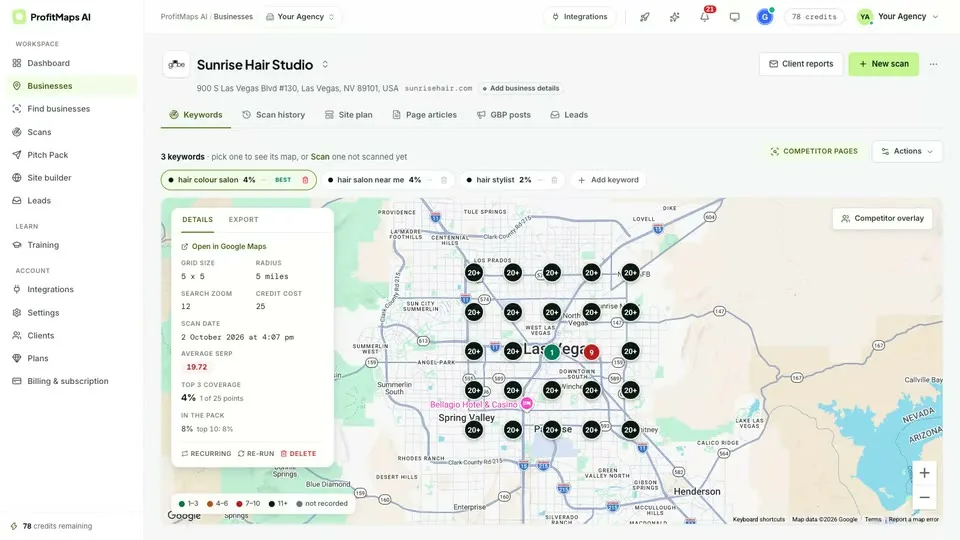
The recorded map uses different categories for top-three positions, intermediate positions, weaker rankings and unrecorded results. Read the displayed legend: do not assume every red point means the business is absent from all search results.
An observed position beyond the top three is different from a failed data retrieval or a result outside the reported depth. Record that distinction. If a scan has missing or incomplete points, do not count them as confirmed poor rankings merely to strengthen a pitch.
Compare Nearby and Outer Points Carefully
A strong result beside a storefront and weaker results farther away can be a useful observation. It is not automatically a penalty or proof of lost revenue. Google's local ranking guidance identifies relevance, distance and prominence as important factors; your interpretation should consider location as well as the service query.
Summarise the finding in bounded language: “For this query and these settings, the listing appeared in the top three at these sampled points.” Do not replace that statement with “You are losing this many customers” unless independent business evidence actually supports the calculation.
For an accuracy evaluation checklist, use our ProfitMaps AI honest review. Useful checks include repeating the same configuration, investigating unusual results and distinguishing data collection from conclusions. A colourful map alone does not establish accuracy.
Step 4: Prepare the Client-Facing PDF and Explanation
Verify the Export and Branding Rights
The vendor demonstration shows a company name, report logo, colour settings and a white-label control associated with Pro. Confirm that your purchased plan supports the required PDF or share-page output before promising a branded client deliverable.
Follow the available report/export controls in your version. The recording is evidence of a workflow, not a guarantee that a particular button label or one-click PDF process will remain identical at release.
Make the Report Explainable
A useful audit summary contains more than a screenshot:
- Measurement: Business, query, scan date and geographic settings.
- Observation: The pattern actually present, including missing data.
- Interpretation: Plausible factors to investigate, not an invented diagnosis.
- Action: A short list of work you can perform and how it will be checked.
- Boundary: No guarantee of rankings, calls, clients or revenue.
Review generated recommendations before sending them. An AI plan can suggest investigation priorities, but it cannot know every existing citation problem, website limitation or business constraint from a grid alone. Correct any unsupported claim and open the final PDF or share page to check labels, readability and links.
Step 5: Turn the Audit into a Practical Client Pitch
Lead with the service-area question, not the software. Show one clear pattern, explain the scan settings and invite a discussion about the business's priorities.
For a short demonstration, choose a relevant query and show a near-storefront point beside an outer point. Explain that the grid is a sampled observation. Then propose a limited first scope: review profile accuracy, assess relevant landing-page content and agree on repeat monitoring.
Do not claim that the scan already fixed the issue or that another scan will automatically deliver a lead. The agency pitch blueprint develops the outreach message, service scope and illustrative $500 monthly model without turning them into earnings evidence.
Keep API and Credit Usage Efficient
The inspected product material does not establish whether you must supply a personal Google API key or separately billed data account. Do not configure a paid service simply because the interface displays a map. Ask what credentials are required, who pays for data access and what happens when included credits run out; our technical buyer FAQ separates those questions.
Use a small repeatable monitoring plan before adding volume. One 5 × 5 grid for two queries repeated twice would involve 100 sampled positions. That is a workload count, not confirmation of a 100-credit bill. The actual cost depends on the product's charging rules and preview.
Keep existing results when they still answer the client's question. Schedule fresh measurement around real reporting needs rather than rerunning every query daily for appearance. Preserve settings, investigate failed jobs and confirm whether retries are charged before repeating them.
Final Recommendation: Validate One Complete Audit
Start with one business, one query and a known scan cost. Complete the sequence from settings to interpretation to a reviewed report, and measure your own preparation time. Only then decide whether extra capacity or white-label presentation warrants an upgrade.
The main ProfitMapsAI.net review keeps the provisional 7.6/10 workflow-fit assessment separate from this practical guide. Neither that score nor the advertised $37 entry establishes completed customer testing, unlimited data or a verified discount.
Frequently Asked Questions
Can I complete the full ProfitMaps AI audit in 60 seconds?
No guaranteed 60-second completion time is established by the inspected demonstration. The vendor states that scan waiting time is cut out, while setup, processing, review and proposal writing are separate tasks. Time your own complete workflow rather than treating the edited video as a performance benchmark.
Should I start with a 5 × 5 or 7 × 7 geo-grid?
The documented default is 5 × 5, giving 25 sampled positions; a 7 × 7 layout would sample 49. Confirm that the larger option is available in your licence and inspect its actual cost before using it. Choose dimensions and radius around the business question, then preserve them for repeat comparisons.
Does Basic include branded PDF reports and my own API credentials?
The vendor demonstrates report branding and attribution removal as Pro capabilities, so Basic white-label rights should not be assumed. Personal API-key requirements and separately billed data access remain unconfirmed in the inspected public specifications. Ask about both export entitlements and credentials before setting up a client service.
Is there a verified launch discount or standard refund period?
No coupon acceptance or fixed refund duration has been verified for this guide. The seller advertises the October 21 release and a $37 Basic entry, while its current launch FAQ says refund details are coming soon. Review the live payment, discount and return conditions before buying.