
Purchase links may earn us a commission at no extra cost to you. Our assessment is based on documented capabilities and purchase checks, not promised customer outcomes. Our editorial approach.
Quick answer: The ProfitMaps AI demonstration shows a browser-based workspace connecting businesses, geographic ranking scans, prospecting, reports and website-pitch tools. It helps you understand the proposed workflow, but an edited vendor recording is not a hands-on account test or a reliable measurement of interface speed. As of October 17, the advertised public release remains October 21, 2026 at 11 AM EDT, and a working purchase checkout or immediate account delivery has not been confirmed for this guide.
If you already bought access, use the private receipt or seller-issued account email to locate your login. Do not enter your password into a review site, a copied dashboard image or a page claiming to bypass activation. We do not provide a member login or collect account credentials.
Commercial disclosure: links to the purchase destination may earn us a commission at no extra cost to you. The screenshots below are attributed vendor demonstrations, not our client results.
What the Public Demo Can—and Cannot—Show You
The official product documentation, checked October 17, describes an agency-oriented sequence: select a local business, inspect its visibility, prepare a useful deliverable and start a relevant commercial conversation. The demonstration provides evidence of displayed interface elements, not proof that every plan includes them or that the released integration behaves identically.
Look for three things while watching. First, identify the business currently selected so you know which records the screen describes. Second, distinguish configuration screens from completed output. Third, check whether the recording skips a waiting stage: the vendor walkthrough says scan waiting time is cut out, so playback length cannot establish an end-to-end scan time.
Our honest workflow-fit review covers the broader buying judgement. This page concentrates on navigating the demonstrated workspace and avoiding access mistakes, rather than repeating every feature or upgrade.
Inside the Cloud Portal: Layout Before Speed Claims
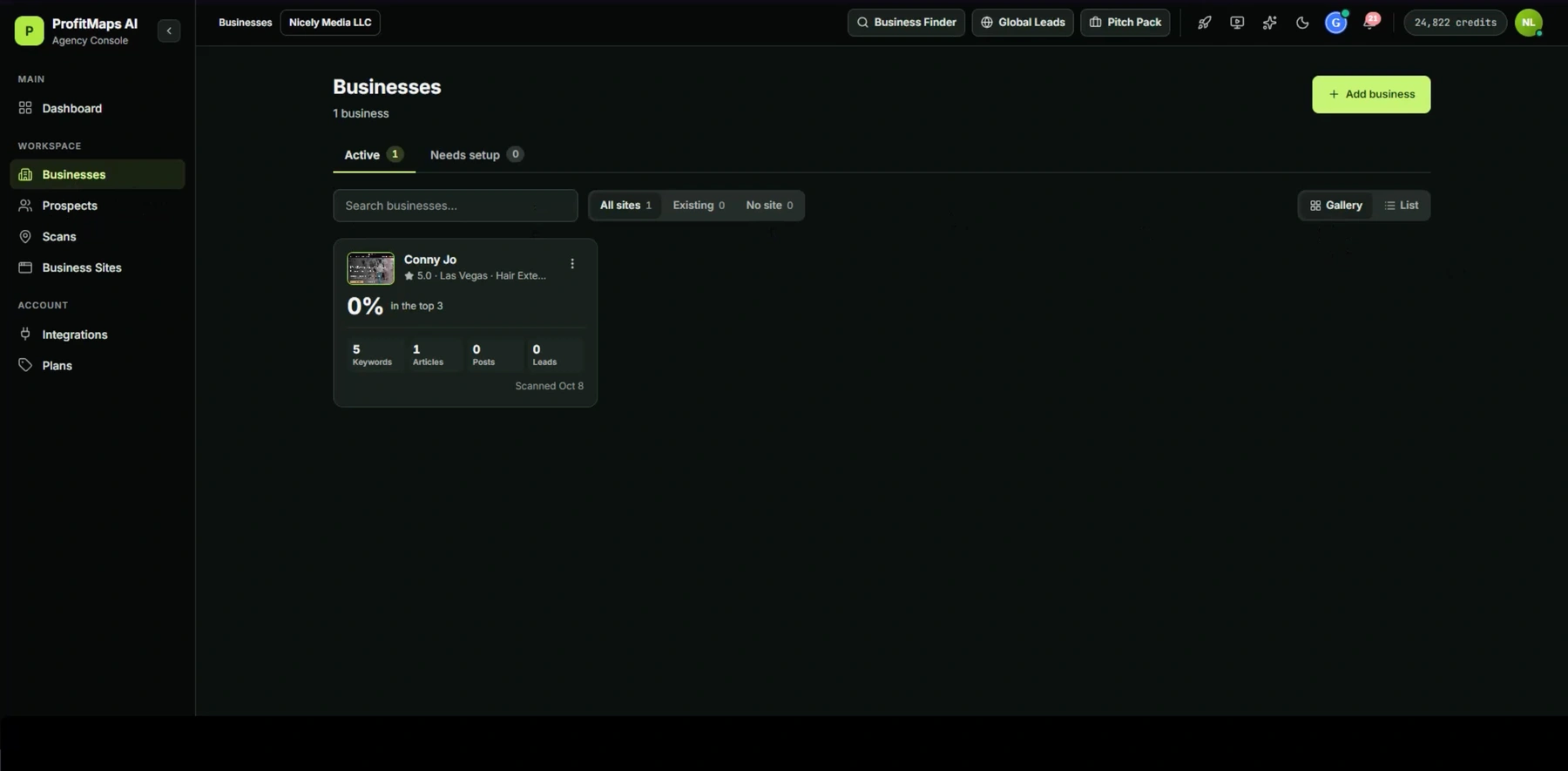
The supplied vendor capture shows a left navigation rail, a Businesses workspace, a business card and an Add business control. Other visible navigation labels include Prospects, Scans, Business Sites, Integrations and Plans; top-level shortcuts include Business Finder, Global Leads and Pitch Pack. A different recorded screen uses slightly different labels, so treat them as orientation clues rather than a guaranteed final menu map.
The important relationship is workspace → business → keyword → scan → deliverable. Before exporting anything, confirm that all five describe the same client and location. A polished report for the wrong branch is not a useful audit.
There is no defensible UI-speed score here. Recording quality, editing, browser resources and background jobs all affect what a viewer sees. During an actual trial, separately time opening a workspace, submitting a job, receiving results and exporting a report; record failed jobs and retries as well as successful ones.
Module 1: The Geo-Grid Scanner Engine
Confirm the Business and Keyword First
The scan should answer a defined question about a real service area. Verify the listing and location, then choose a phrase the business genuinely serves. Do not use an unrelated keyword simply because it produces more red points for a sales pitch.
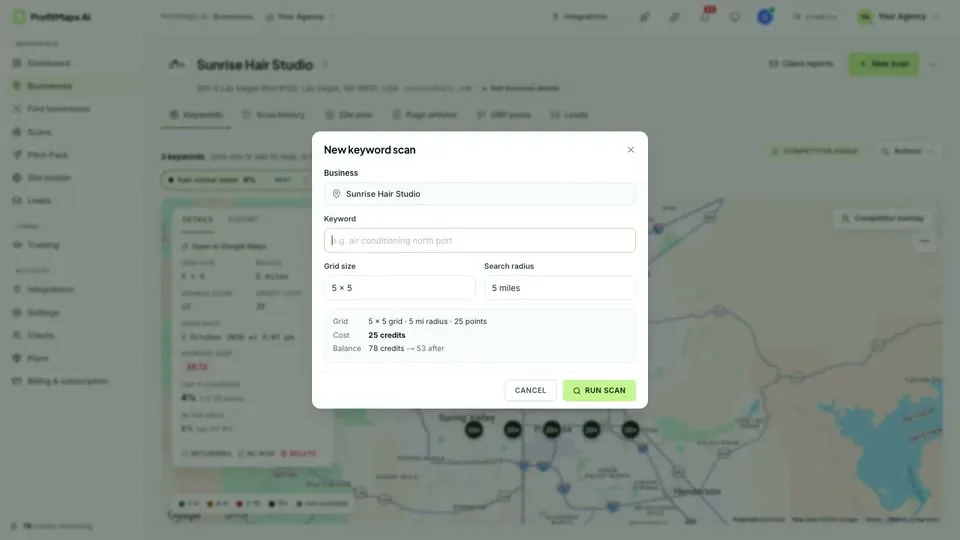
The demonstrated scan dialog includes a keyword field, geographic settings and an estimated charge before submission. Record the query exactly. If you change the query, radius or centre on the next run, you are measuring a different condition rather than a clean before-and-after comparison.
Understand Grid Dimensions and Coverage
Current vendor specifications list 5×5 for Basic and 9×9 for Pro and bundles. A 5×5 grid has 25 positions; a 9×9 grid has 81. Those are geometric counts, not proof that all plans charge one credit per point or include a particular number of scans.
Radius and sampling density are separate decisions. Expanding the sampled area can reveal a competitive boundary, but weak performance farther from a business does not automatically establish a technical fault. Save the displayed settings with the report so another person can interpret the same evidence.
Distinguish a Submitted Job from a Completed Scan
After submission, inspect job status before retrying. A blank map, delayed result and failed job are different states, and none should be diagnosed solely from a recording. Save a job identifier and timestamp when available; ask support whether a failed attempt consumes credits before running it repeatedly.
For the full operational sequence and audit log, use our step-by-step ProfitMaps AI workflow guide. That guide is the better place for detailed setup; this tour explains what the screens mean.
Module 2: Business Finder, Prospecting and GBP Audit Context
The public demo describes searching a business category in an area and filtering businesses with no website or weak ranking visibility. It also displays a 0–99 score. Treat that number as a vendor-generated prioritisation signal until its inputs, weighting and refresh behaviour are explained—not as a Google score or a verified probability of closing a sale.
Business Finder is separately listed at an advertised $97. A shortcut visible in a demo does not establish that Basic includes unrestricted access. Confirm the offer you are buying, the search allowance, data recency and permitted use of the resulting records.
Validate a prospect manually before outreach. Check that it is an active business in the correct market, that the service matches your query and that the observed issue is relevant to something you can deliver. A listing with no website is a research lead, not permission to take control of its profile or contact everyone associated with it.
A ranking grid describes observed visibility at sampled locations. It does not prove missed revenue, the cause of a ranking problem or a promise of improvement. Keep those interpretations separate in the client conversation.
Module 3: Report Settings, Exports and Client Sharing
The vendor settings capture shows company identity, report-logo and report-colour controls, together with an attribution-removal setting. Its labels reference PDFs, share pages and client report emails. That supports a documented reporting proposition; it does not independently validate every export entitlement or a live share link from the entry plan.
Before delivering a report, inspect the actual exported PDF and, if your licence supplies one, the separate share view. Check the business, query, scan date, geography, legend, page breaks and branding. Confirm that a share link is read-only and exposes only the intended client data; do not assume a workspace link is safe to forward.
| Screen or output | What to verify | What not to infer |
|---|---|---|
| Business workspace | Correct business and location | Unlimited customers or branches |
| Scan setup | Exact query, area and displayed charge | A guaranteed number of monthly scans |
| Results grid | Completion status, legend and observation time | Lost revenue or an automatic ranking fix |
| Report settings | Purchased branding controls and output rights | Full software resale rights |
| PDF or share view | Actual content, access boundary and expiry | Every demo function being included in Basic |
ProfitMaps AI Login Delivery and Account Provisioning
If You Have Not Purchased
Do not search for shared credentials or expect an affiliate availability link to sign you in. The seller's release schedule is not proof of immediate provisioning. Before paying, confirm the product name, billing line, account email, delivery method and support route shown for that offer.
The pricing and upgrade guide separates the advertised packages. One purchase destination can lead to different selected offers, so the name on the final order matters more than the button you first clicked.
If You Have a Valid Order but No Access
Read the receipt and access messages sent to your purchase email. Check spam and any filtered inbox categories. Use the seller-issued activation or login destination from those records rather than a third-party search advertisement; no exact public member-login URL is verified by this guide.
If an activation message is missing, contact seller support through the receipt or official support route with the order reference and purchase email. Do not send a password, recovery code, card number or complete receipt token in a public comment. A seller may need to reconcile the payment and account; buying another upgrade is not the correct first response to missing access.
If Login or a Job Fails
Record the error, affected action, approximate time and browser version. Remove customer details from screenshots. An authentication failure needs a different support request from a completed login followed by a stalled scan.
Use the genuine account-recovery flow if available, and request clarification if the software account email differs from the order email. The seller's published terms prohibit making your login available to others, so a virtual assistant should not receive your main password as a workaround. Our buyer FAQ covers further account and usage questions.
Pre-Buy Checklist: What Would Make Access Useful?
Write a small first-session brief: one business, one service query, one geographic area and one report you intend to review. Then check whether the selected licence supports those tasks within its actual allowance.
Confirm the following before purchase:
- The sales destination and payable checkout are genuinely available.
- Your selected tier includes the necessary scan and export functions.
- Included credits, replenishment, optional data costs and top-ups are explained.
- The account-delivery route and support contact are clear.
- Client branding and account permissions match your intended use.
- The seller's current return conditions apply to the selected offer.
The seller's terms of service, checked October 17, describe one-time plan purchases with upgrades and extra credits charged separately. Its refund policy describes a 30-day period; neither statement proves that an uninspected order is currently available or that refund handling has been tested.
For another related editorial perspective, see the ProfitMaps AI analysis on Launch Review Lab. That is our affiliated sister publication, not an independently replicated account test.
Frequently Asked Questions
Where is the official ProfitMaps AI login page?
Use the private access or activation destination supplied by the seller with your valid order. This guide has not verified a universal public login URL, so it does not invent one or collect credentials. If the access message is missing, contact the seller through your receipt or official support channel.
Is the ProfitMaps AI demo a hands-on performance test?
No. The material discussed here is the vendor's public recorded demonstration, including edited scan waiting time and sample-account figures. It supports an interface walkthrough, not an independent speed benchmark, a verified account allowance or evidence of customer results.
Does the $37 Basic licence include every dashboard module?
The $37 amount is the advertised Basic entry price, not proof that every visible shortcut is included. Business Finder, enhanced branding and client-account features must be checked against the selected plan and final licence. The displayed credit balance in a recording is not your purchased allowance.
What should I do if I paid but cannot access the dashboard?
Check your receipt, purchase email and spam folders for the genuine activation instructions. Contact seller support with the order reference and a sanitised description of the problem; do not buy another upgrade or share your password to troubleshoot. Provisioning time and successful refund processing have not been independently tested by this guide.